
How large a PDF a browser can handle — and how to measure your own limit
There is no universal page limit, because the limit is your machine. The three things that actually run out, the estimate you can do in your head, and a five-minute measurement instead of a made-up benchmark.
“How big a PDF can this handle?” is a reasonable question with an unreasonable answer: it depends on the file, the operation and your machine, and any specific number printed on a page would be wrong for most readers. What can be given honestly is the model — the three resources that run out, in the order they run out — plus a five-minute measurement you can run on your own hardware. That is what this guide does, and it deliberately contains no benchmark table, because we have not measured your computer.
The three things that run out
- Memory for the file itself. A local tool holds the source bytes, then the rebuilt document, then the output you download. Peak usage is a multiple of the file size — for a page-copy operation, expect roughly twice the source, plus the output.
- Memory for one rendered page. Rasterising a page needs a canvas of width × height × 4 bytes. A4 at 150 DPI is about 8.7 MB, at 300 DPI about 34.8 MB, per page, while that page is being drawn.
- The tab's own ceiling. Browsers put a per-tab limit on the JavaScript heap and on how much a canvas may allocate; on a 64-bit desktop that ceiling is typically a few gigabytes, and on a phone it is far lower. When it is hit, the tab does not report an error — it disappears.
The order matters. A 200-page text PDF of 4 MB costs almost nothing in memory and every page renders in milliseconds. A 12-page scan of 180 MB costs 180 MB before anything is drawn, and then 35 MB per page at 300 DPI on top. That is why “how many pages” is the wrong question and “how many megabytes, and what is inside them” is the right one.
Measuring your own limit in five minutes
01Write down what your machine has free
On Windows, Task Manager's Performance tab; on macOS, Activity Monitor's Memory tab. Record the free memory before you start — that number, not the total RAM, is what the browser can actually use.
02Open the browser's own task manager
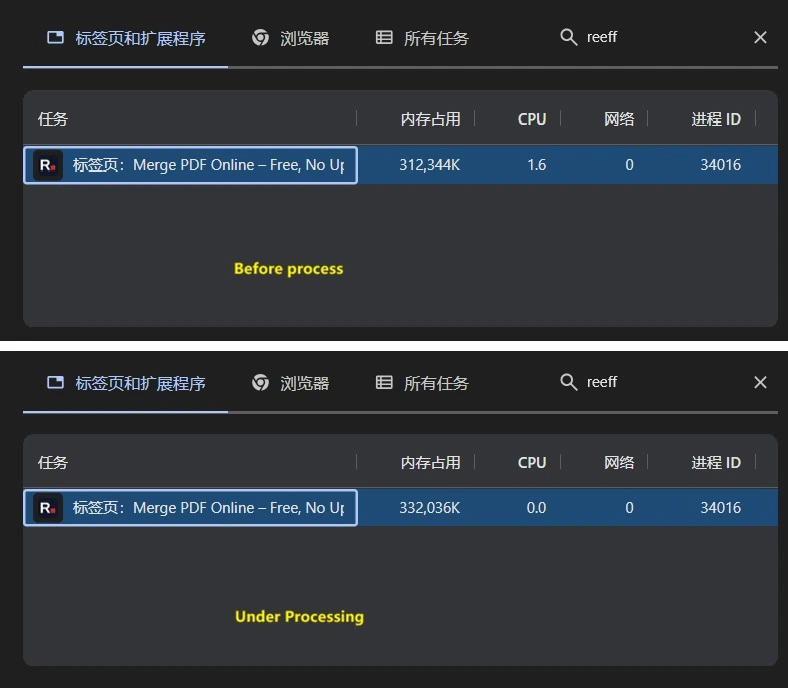
Chrome and Edge: Shift + Esc. Firefox: the about:processes page. Safari: the per-process list in Activity Monitor. Find the tab you are about to use and note its memory now, so the delta has a baseline.
03Run the operation and watch the peak
Start the conversion, keep the task manager visible, and note the highest number before it drops back. That peak is your answer, and it is specific to this file on this machine. Repeat with a file twice the size to see whether the growth is linear — for page-copy operations it usually is.
04Confirm nothing left your machine
Open DevTools, Network tab, then run the conversion again. There should be no request carrying the file: no POST with megabytes of body, no upload progress. If you see one, the tool is not local, whatever the page says.
What a failure actually looks like
- The tab vanishes to a “Aw, Snap” or “This page is having a problem” screen. The renderer process was killed for exceeding memory; nothing was saved.
- The operation hangs at 99 % and the tab becomes unresponsive. Sometimes it recovers, sometimes the OS swaps and the whole machine crawls.
- An error like “failed to read the file” or a canvas that comes back blank. On mobile browsers the per-tab limits are tight enough that this happens well before the desktop equivalent.
- A result that is mysteriously small but opens fine with missing pages — the worst failure, because it looks like success. Always count the pages.
Three worked examples
| File | Operation | Peak estimate | What it shows |
|---|---|---|---|
| 4 MB text PDF, 200 pages | Merged with two others | Well under 50 MB | Page count is irrelevant. Text documents are cheap whatever their length. |
| 180 MB scan, 12 pages | Compressed to 150 DPI | ≈ 360 MB source and output, + 9 MB per page drawn | The megabytes dominate, not the pages. Twelve pages can be harder than two hundred. |
| 60 MB scan, 300 pages | Converted to images at 300 DPI | ≈ 120 MB, plus 35 MB while any single page is being drawn | Rendering peaks per page, so the page count costs time rather than memory — but the ZIP it produces costs disk. |
Two different curves come out of that table. For operations that copy pages — merge, split, delete, extract, rotate — memory tracks the file size, so a big PDF is expensive however few pages it has. For operations that draw pixels — compress, PDF to image, and the previews in the editor — memory tracks resolution × page area, so the same document becomes four times more expensive when you double the DPI. Knowing which curve you are on tells you which lever to pull before the tab dies.
When the file is bigger than your machine
- Split the job. Extract the pages you need from the original, or process the document in parts and merge afterwards — the second pass is cheaper than the first crash.
- Lower the resolution. At 150 DPI a page costs 8.7 MB instead of 34.8 MB; for a 300-page scan that is the difference between finishing and not.
- Close what you are not using. A browser with thirty tabs is already using the memory your conversion needs, and the tab that dies is usually the one doing the work.
- Move to a machine with more RAM. It is the honest answer: the constraint is local, so the fix is local too.
So: no benchmark table, no invented “works up to 250 MB”. Three resources, one estimate, and a five-minute measurement that gives you a real number for your machine — which is the only number that would ever have applied to you.