
Merging PDFs without losing bookmarks, links or page size
A merge copies pages, not the document around them. What survives the page copy, what silently disappears, and how to check your finished file in under a minute.
Merging is the most-used PDF operation and the one people trust most. You add eleven invoices, press merge, and get one file with eleven pages. What the result does not tell you is that the bookmarks, the internal links and the form fields of those eleven documents are gone — the pages were copied, the containers were not. This guide explains exactly what a page copy keeps, what it drops, and how to confirm the difference in the file you just made.
Why a merge loses things nobody asked it to touch
A PDF is not a flat list of pages. It is a page tree plus a document catalog, and the two hold different things. Each page object carries its own content stream, its own resources (fonts, images, colour spaces) and its own annotations. The catalog carries everything that describes the document as a whole: the outline that becomes the bookmarks panel, named destinations, the AcroForm definition that makes form fields interactive, page labels, the document language tag, attachments and the XMP metadata block.
Merging is implemented as a page copy: the tool loads each source file, copies the page objects into a fresh document, and saves. That fresh document has an empty catalog by construction. Nothing in that operation is broken — it is doing exactly what it was asked — but a reader who had bookmarks in the source will experience the result as loss.
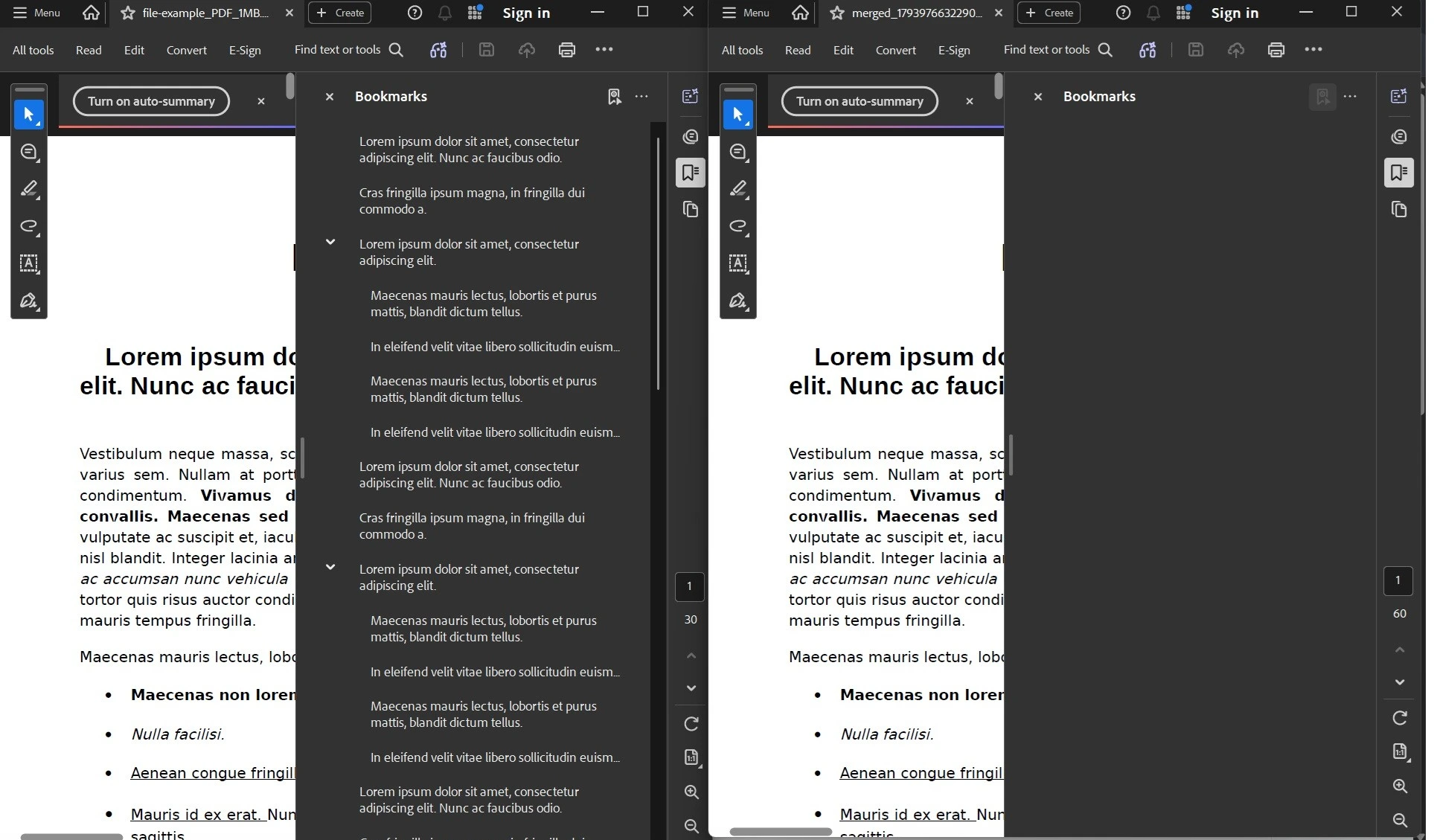
- The bookmarks panel comes back empty, or keeps only the first document's outline if the tool copied the tree wholesale.
- Internal links that jumped to a page or a heading now jump nowhere, because they pointed at page objects in the old file.
- Form fields may still be drawn, but the AcroForm definition that made them fillable is not in the new catalog, so a “fillable” form arrives as a picture of a form.
- Any digital signature on a source file is invalidated the moment its bytes are rewritten — including by a merge that changes nothing visible.
- The merged file is a new document, so its metadata is new too: original creation dates, producer strings and XMP history belong to the sources and stay there.
Doing the merge so the result is predictable
01Decide the order before you add files
The merge follows the order the files are listed, not their names and not their dates. Sort the folder first if the names are numbered, and use the drag handle afterwards for the two files that always end up in the wrong place. Renaming a file to force an order is the slowest possible way to do this.
02Merge in one pass, not in five
Merging A+B, then merging that result with C, re-copies every earlier page again. Each round trip is another chance to drop a resource and another copy of every embedded font. Add all sources to one list and merge once; the page count and the file size both stay closer to the sum of the inputs.
03Check the page count before you download anything else
Add up the page counts of the sources and compare with what the result reports. A mismatch means a file failed to load — usually a password-protected or damaged PDF — and the merge quietly used fewer pages than you expected.
If what you actually need is to keep the bookmarks, do not merge: keep the documents separate and reference them, or rebuild a single outline by hand in a tool that can write outlines. There is no “preserve bookmarks” checkbox, because preserving them is not a flag on the copy — it is a rebuild of the outline that has to decide what each bookmark points at in the new page numbering.
What survives a page copy
| What the source file has | In the merged file |
|---|---|
| Pages, their sizes and rotation | Kept. Every page keeps its own MediaBox and /Rotate. |
| Text layer, fonts, images | Kept — and duplicated. A font used by three sources is embedded three times. |
| Bookmarks (the /Outlines tree) | Dropped. The new catalog starts with no outline. |
| Internal links and named destinations | Dropped, or left pointing at page numbers that no longer exist. |
| Form fields (AcroForm) | Field appearances may still draw, but the definition that made them fillable is not copied. |
| Digital signatures | Invalid. The signed bytes no longer exist, so every signature reports as broken. |
| Metadata and XMP history | New document, new metadata. The sources' producer strings stay behind. |
A4 next to Letter: the part that shows up at the printer
A merge does not pick a page size. Each page keeps its own box, which is correct behaviour and also the reason a mixed file prints badly. A4 is 210 × 297 mm (595 × 842 pt) and US Letter is 215.9 × 279.4 mm (612 × 792 pt): Letter is 5.9 mm wider and 17.6 mm shorter. Print that merged file with the driver set to “fit to page” and every page is scaled by a different factor — 595 ÷ 612 ≈ 0.97 for the Letter pages — so the text in one half of the document comes out about 3 % smaller than in the other half, and page margins no longer line up. Print at 100 % instead and the 297 mm pages are 17.6 mm taller than the sheet.
- If the pages are going to a printer, convert the odd paper size out before merging rather than after: one A4 document prints predictably, one mixed document does not.
- If the merged file is only ever read on screen, mixed sizes are harmless — most viewers simply show the two shapes.
- When you cannot convert, print with “fit to printable area” and accept that the two halves will differ slightly in scale. Do not use “actual size”, which clips the taller pages.
Checking the result in a minute
- Compare page counts: the merged file should equal the sum of its sources. Fewer means a file was skipped.
- Open the bookmarks panel. If you expected bookmarks and the panel is empty, that is the page copy, not a bug in your file — rebuild the outline or merge differently.
- Search for a phrase you know sits inside the second source. If it is found, the text layer came across as text and the pages were not rasterised.
- Check the document properties of the first page of each source: identical paper sizes mean the print settings will behave.
- Try one internal link, if the source had any. A dead link confirms the destinations did not travel with the pages.
When merging is the wrong tool
- You need three pages out of a 200-page contract: extract them instead. The result is a new 3-page document without carrying 197 pages of baggage.
- You need the chapters as separate files, not one book: split instead, so each chapter keeps its own name and its own size.
- You need to reorder or drop pages inside one document: that is page surgery, not a merge, and doing it as a merge of three extracts produces the same pages with three times the embedded fonts.
Merging is the right tool when the destination is a single file that a person or a system expects as one document — an expense claim, a due-diligence bundle, a scanned passport plus its stamp page. For everything else, the smaller operation is usually the better one, and it keeps the things a merge quietly drops.