
Why “compress PDF” barely shrinks your file — and what actually does
Most PDFs are already compressed, so a lossless pass saves a few percent. The lever that works is pixels: DPI, JPEG quality and colour. What each level of the tool really does, with the arithmetic behind it.
You have a 12 MB PDF, you press compress, and you get 11.6 MB. Nothing is broken — that is what compression can do to a file that was already compressed. Almost every PDF produced in the last fifteen years already has its streams deflated and its images JPEG-encoded, so “compress” has to take something away to give you bytes back. This guide shows what the tool actually removes at each level, why the size is decided by pixel count rather than by page count, and how to pick a level you can defend.
Two completely different files called “a PDF”
Before choosing a level, find out which kind of document you have. The answer decides whether compression will do almost nothing or a great deal.
| Text-born PDF | Scanned PDF | |
|---|---|---|
| How it was made | Exported from Word, LaTeX, InDesign, a browser print dialog | Photographed or scanned page by page, then wrapped in a PDF |
| What is inside | Fonts plus text operators, a few vector shapes | One large image per page, usually JPEG or JPEG2000 |
| Can you select a word? | Yes | No — unless it was OCR'd afterwards |
| Typical size | 80 KB – 2 MB | 2 MB – 40 MB |
| What compression can save | A few percent, occasionally more on old exports | A lot, but only by lowering resolution or quality |
A quick test: open the file, drag across a line of text and press Ctrl/Cmd+C. If the selection highlights characters and pastes as text, it is text-born. If the selection is a rectangle around the whole page, it is a scan.
What the three levels actually do
01Light — repacks the file, keeps everything
The document is loaded and re-saved with object streams enabled and metadata updates switched off. No page is decoded. Text stays text, images keep their exact bytes, and nothing becomes blurry. The saving is whatever the original's packaging wasted: usually a few percent, and on files written by older software sometimes a few hundred kilobytes. A file exported by a current version of any mainstream tool usually has very little to win here, because it already uses object streams.
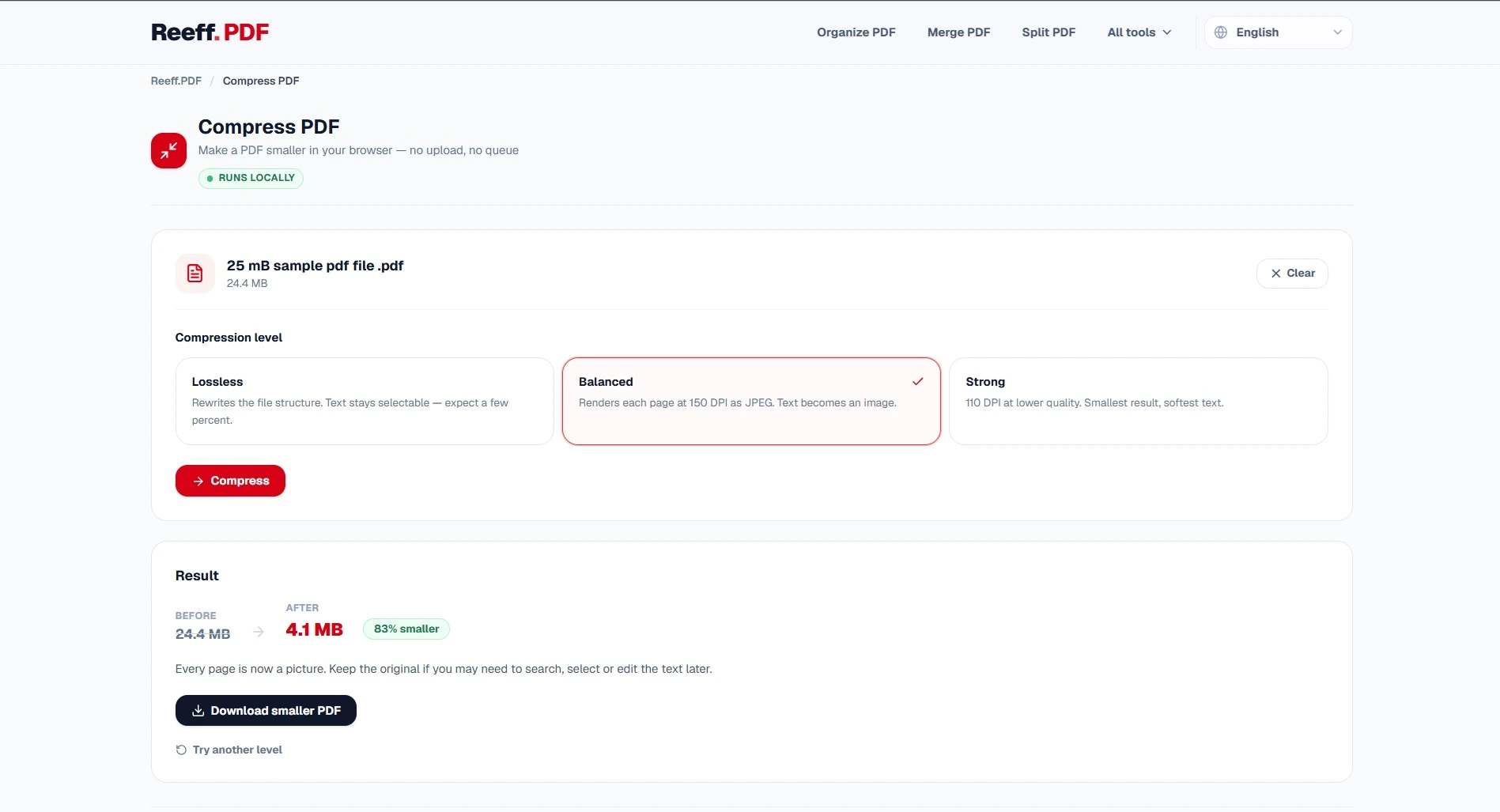
02Balanced — renders each page at 150 DPI as a JPEG (quality 0.8)
This is rasterisation: every page is drawn to a canvas and re-encoded as a single JPEG at roughly 1240 × 1754 pixels for A4. The page is now an image. The file gets much smaller, text stops being selectable or searchable, and small type starts to soften when printed. 150 DPI is the point where a scan still reads comfortably on screen and in print.
03Strong — renders each page at 110 DPI as a JPEG (quality 0.65)
The same operation at lower resolution and lower quality: about 909 × 1286 pixels for A4. This is the level for “it must fit under an upload limit”, not the level for anything a client will read closely. Text below about 8 pt starts to break up, and JPEG artefacts appear around high-contrast edges such as black text on white.
The number that explains everything: pixels
A rasterised page is a grid of pixels, and the file has to store one value for each of them. Double the resolution and you quadruple the pixels — which is why “compress to 300 DPI” and “compress to 150 DPI” are not 2× apart in size, they are 4× apart before any quality setting is applied.
| Resolution | A4 pixel size | Pixels | Bitmap while rendering |
|---|---|---|---|
| 72 DPI (PDF's native unit) | 595 × 842 | 0.5 MP | ≈ 2.0 MB |
| 110 DPI (Strong) | 909 × 1286 | 1.2 MP | ≈ 4.7 MB |
| 150 DPI (Balanced) | 1240 × 1754 | 2.2 MP | ≈ 8.7 MB |
| 300 DPI (print quality) | 2480 × 3508 | 8.7 MP | ≈ 34.8 MB |
The JPEG that gets written is far smaller than the bitmap that produced it, because JPEG throws away detail the eye is bad at noticing. A text page at 150 DPI typically lands somewhere between 80 KB and 400 KB depending on how much ink is on it, which is why a 300-page scan lands in the tens of megabytes and a 3-page one lands under a megabyte. Those are ranges, not promises: the only number that matters is the one on your own file, and the tool shows it before you download.
Why a re-encoded scan can come out bigger
A scan that was already saved as a low-quality JPEG at 200 DPI can grow when it is re-encoded at 150 DPI and quality 0.8: fewer pixels, but more bits spent per pixel. Compression is not a monotonic dial. It also costs quality twice — JPEG is lossy, so every round trip adds artefacts on top of artefacts that are already there.
- The tool refuses to hand you a result that is the same size or larger at the chosen level. That refusal is information: this file has nothing to give at this setting.
- Compressing an already-compressed scan twice, then a third time, is how a document ends up unreadable while still being too big.
- Encrypted PDFs and files with damaged cross-reference tables can fail to load at all; compression is not a repair tool.
What actually works, in order
- Write down the limit you are fighting: “under 2 MB for an upload form” and “as small as possible” lead to different choices, and only the first one has a stopping point.
- If the document must stay searchable, use Light and accept the few percent. If that is not enough, split the document into volumes instead of degrading it.
- If it is a scan that will only be read on screen, use Balanced (150 DPI). Compare a page at 100 % zoom before you send it; if the type is still crisp, stop there.
- If it still will not fit, use Strong (110 DPI) and check the smallest text, not the largest. A signature line is where low resolution shows first.
- If you still have the paper, re-scan at 150–200 DPI in greyscale instead of post-processing a 600 DPI colour scan. That removes the problem instead of shrinking it.
- Whatever level you chose, open the result and search for a word you know is in the text. If the search fails, you have rasterised the document and should keep both files.
The honest summary: the only PDFs that shrink dramatically are scans, and they shrink because their pages stop being pages and become photographs. Everything else saves a few percent. Knowing which of the two you are holding is the whole decision.