
Delete, extract or reorder: picking the right page-surgery tool
Four tools do almost the same thing and one of them is always the right one. A decision table for page surgery, why the page numbers shift under you, and the check that catches a wrong deletion before you send the file.
There are four ways to change which pages a PDF contains, and the difference between them is smaller than the four menu entries suggest: all four copy pages into a new document. What changes is which pages you have to name — the ones you keep, or the ones you throw away — and that single difference is where every mistake in this family happens.
The decision takes one question
Ask how many pages survive. If most of the pages survive, name the ones that go. If only a few survive, name the ones that stay. If the count is roughly half, use the grid tool and stop counting.
| What you want | Tool | What you have to select |
|---|---|---|
| Remove 3 pages from a 40-page report | Delete pages | The 3 pages that go |
| Keep pages 12–18 of a 200-page contract | Extract pages | The 7 pages that stay |
| Move the signed page to the end | Reorder pages | Nothing — you drag instead |
| Remove some, keep some, fix the order in one pass | Organise pages | The grid, page by page |
Why four tools instead of one
Because the input you need is different. Deleting a page asks you for a page number, which you can read off the viewer. Extracting asks you for a range, which you can copy from a table of contents. Reordering asks for neither — it asks for a shape, and dragging thumbnails is the only way to express it. A single tool that accepted all three kinds of input would be one long form, and the long form is where people select the wrong set.
All four produce the same kind of artefact: a new document built by copying pages. So the consequences are the same ones described in the merging guide — the text layer survives, the bookmarks do not, embedded fonts are duplicated, and page numbering restarts at 1.
If the file is a scan
Scans change what you can trust. A page that looks blank in a thumbnail is not always blank: the reverse side may carry a faint stamp, a signature or bleed-through from the other side of the sheet, and none of that survives being shrunk to 80 pixels wide. Open the page at 100 % before you delete it, and when you are unsure, keep it — a stray blank page costs one sheet of paper, a deleted signature costs the transaction.
- A spread scanned across two pages means “one page” in the grid is half of a document page. Deleting it removes half a chapter, not a sheet.
- If the scan was OCR'd, the text layer travels with the pages you keep. A page you delete loses its text permanently — the text is not stored anywhere else in the file.
- Rotated pages are a separate operation. Deleting and re-adding a page does not straighten it, and a scan that was rotated with a viewing tool rather than saved will come back rotated in the next tool you open.
The numbering trap
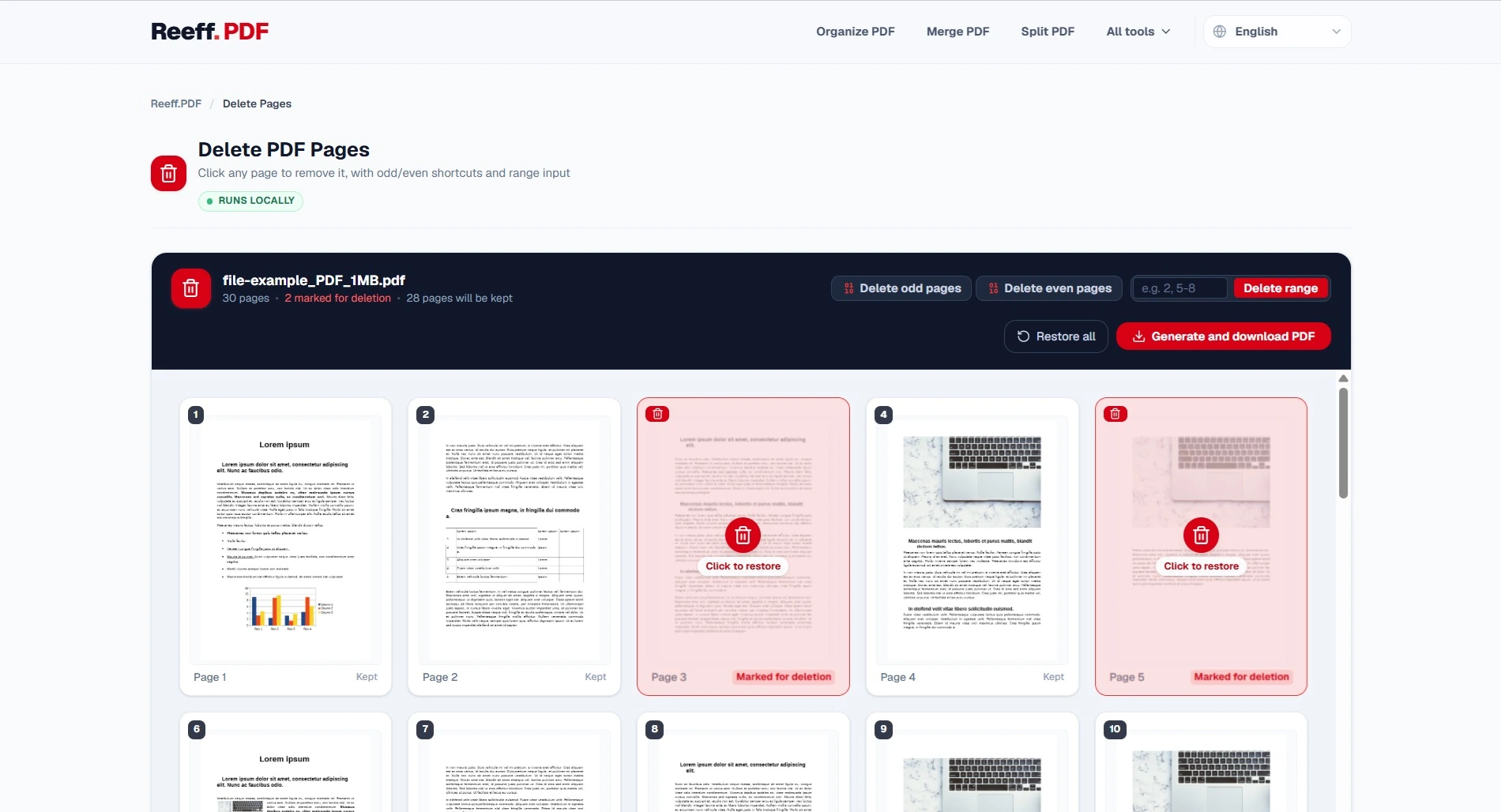
Page numbers in the interface are positions, not identities. Delete page 4 and the old page 5 becomes page 4 — so a second round of “now delete page 9” deletes something you did not look at. Every accident in this family comes from doing the surgery in several passes while reading numbers off a list.
- Collect every page you want to remove first, then apply them in one operation.
- When you have to work in passes, always work from the highest page number down, so earlier deletions cannot shift the numbers you are about to use.
- A page's printed number and its position are two different things. A document whose front matter is numbered i–iv has a six-page offset by the time chapter 1 starts.
- After any operation, the output starts at page 1 again. If you need the original numbering to survive, that is a page-label feature of the source application, not something a page copy can recreate.
Doing it safely
01Write the target page list down before you open the tool
“Remove 3, 7, 12–14” is a plan; “remove the pages that look wrong” is a session. The list also gives you something to check the output against.
02Name the pages by their content, not only their number
Look at the thumbnail and read the heading. That is what catches the case where the page you are about to delete is the only signed one in the document.
03Apply once, then verify the count
Expected page count is easy arithmetic: 40 pages minus 3 deleted is 37. If the number does not match, you either missed one or deleted a different one, and the count tells you which before you send anything.
04Keep the source file
Page surgery is destructive in the sense that the output has no memory of the original. Keep the input until the recipient confirms they have what they needed.
Check before you send
- Count the pages. Compare against the arithmetic, not against a feeling.
- Open the first and the last page of the result, and read the headings. Those are where an off-by-one shows up first.
- Search for a word that only appears on a page you kept. If it is found, the text layer survived and the pages were not rasterised.
- Scroll the thumbnails once, quickly, at small size. Ordering mistakes are obvious there and invisible page by page.
When page surgery is the wrong tool
- You need pages from several documents in a fixed order: that is a merge, and doing it as three extracts and a reorder produces the same pages with three copies of the fonts.
- You need a chapter as its own file: split gives you every segment in one pass instead of one extract per chapter.
- You want the page order changed but the bookmarks kept: no page-copy tool can do that. Rebuild the outline, or keep the original and add a reading-order note.
The four tools exist because naming the pages you keep is a different mental task from naming the ones you throw away. Pick the one that matches the sentence you would say out loud — “drop the last two pages”, “give me pages 12 to 18”, “move the signature to the end” — and the operation stops being risky.