
Splitting a 300-page PDF into chapters without re-compressing it
A split copies pages into new documents, so nothing is re-encoded — but the total size grows, the outline disappears and the printed page numbers stop matching. How to cut a long file so each part is usable on its own.
A 300-page report, manual or scanned bundle is rarely useful as one file: the accountant wants the financial section, the lawyer wants the annex, the person printing wants the ten pages that go to the client. Splitting is the operation that turns one file into those parts. It is also the operation where the arithmetic surprises people, because every part is a complete new document — with its own copy of the fonts, its own metadata and no outline at all.
A split is a page copy, not a re-export
The tool loads the source once, then writes one new PDF per segment by copying the pages that belong to it. Nothing is decoded, nothing is re-rendered and no image is re-encoded: each page's content stream and resources are handed to the new document as they are. That is the good news, and it is why splitting is the safe operation for a scan — a 300-page file cut into twelve chapters still has the same text layer, the same images and the same resolution in every part.
The less good news is what “a complete new document” costs. Every segment carries its own document-level structure, and any resource its pages use has to be present inside that segment. A font subset embedded once in the original is embedded again in each part whose pages use it. For a Latin text document that is often 40–200 KB of duplicated font data per part; for a PDF with a CJK font subset or a large colour profile it can be a megabyte or more per part.
| Thing | After splitting into 12 parts |
|---|---|
| Page content, images, text layer | Identical to the source. Nothing is re-encoded, so nothing degrades. |
| Embedded fonts and colour profiles | Copied into every part that uses them, so the total across all parts is larger than the original. |
| Bookmarks (outline) | Gone. Each part is a new document with an empty catalog. |
| Form fields | The definition lives in the document catalog, so fields stop being fillable even when they still draw. |
| Metadata | Each part gets fresh producer and dates; the source's history is not carried over. |
| Page numbering | Restarts at 1 in every part. A part that was pages 61–90 shows page 1 on its first page. |
Finding the boundaries before you cut
The hard part of splitting is never the button. It is knowing that chapter 4 starts on printed page 61, which may be PDF page 67 — or page 3, if the front matter uses roman numerals. Getting this wrong produces parts that are off by six pages, and the error stays invisible until somebody notices a chapter beginning mid-sentence.
- Search the document for the chapter heading itself (“Chapter 4”, “Annex B”, the exact heading string). The viewer jumps to the page where that text is, which is the page you must cut before.
- Note the viewer's page number and the number printed on the page. Keep the offset — for example, printed 61 is viewer 67, so the offset is +6 for the rest of the document.
- If the file is a scan with no text layer there is nothing to search: read the printed page numbers off the thumbnails and apply the offset you worked out from the first chapter.
- Write the cut points down as “before page N” in one list before touching the tool. Splitting from memory in three passes is how documents end up with a duplicated page.
Cutting
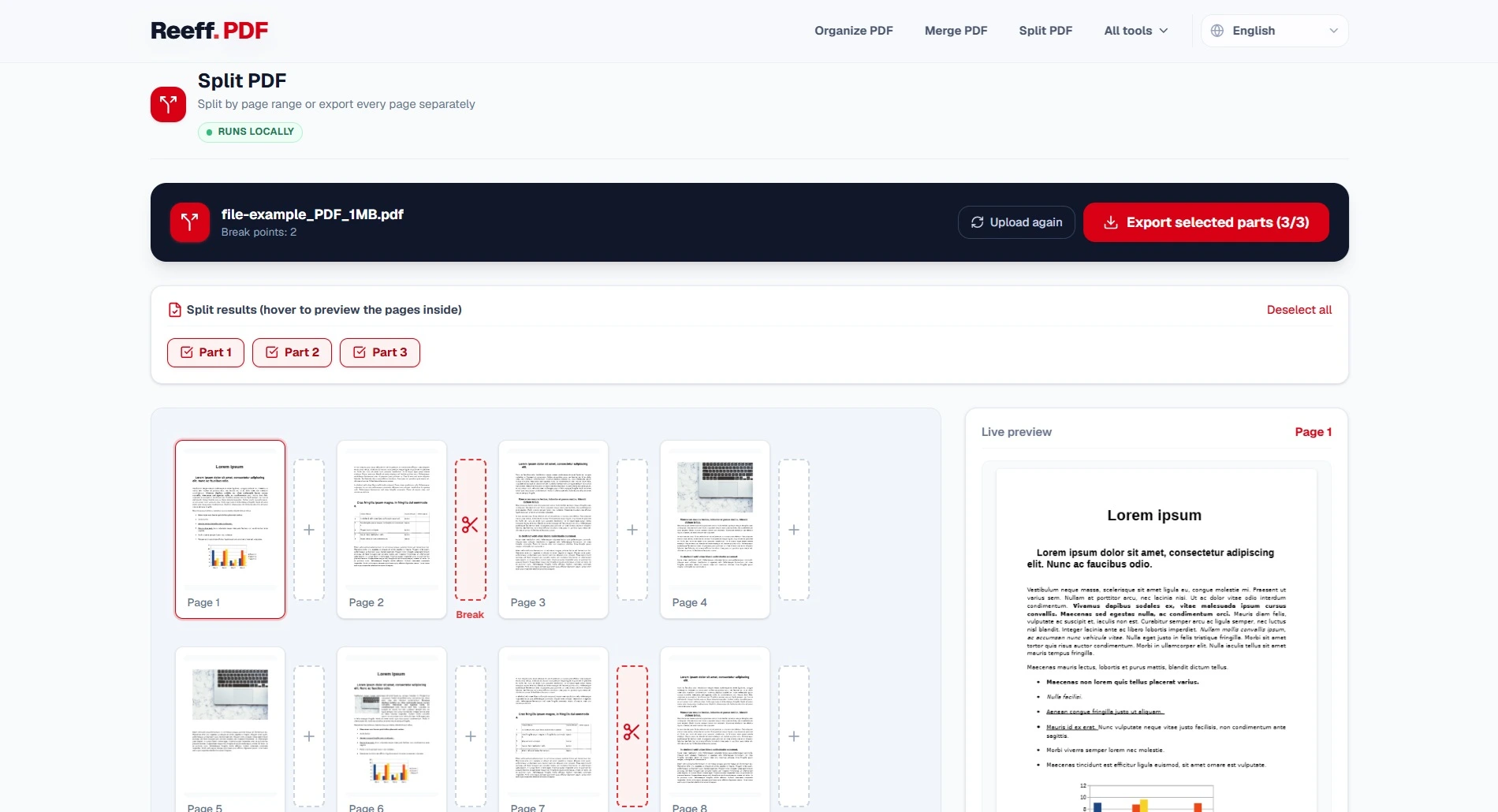
01Add the file and let it count the pages
Confirm the page count matches what the viewer reports. A file that loads as 298 pages instead of 300 has two damaged pages, and every cut point after them is now shifted.
02Set cut points, not ranges
Splitting works from breakpoints: a cut after page 30 means pages 1–30 become the first file and 31 onwards the second. Twelve chapters need eleven cut points, not twelve — the first segment always starts at page 1 and the last always ends on the final page.
03Name the parts before you download them
A dozen files called report-1.pdf through report-12.pdf are unusable a week later. Rename as you save, with the chapter number first so the folder sorts correctly, and keep the zero padding (02, 03 … 12) once there are more than nine.
What to check in each part
- Add up the page counts of all the parts and compare with the source. Twelve parts that add to 299 mean one page went missing at a boundary.
- Read the first line of every part. A chapter that starts mid-sentence is an off-by-one in the page offset you wrote down, and it is the single most common split mistake.
- Search inside one part for a word you know is in that chapter. A split keeps the text layer, so the search must work; if it does not, the file was already rasterised before you split it.
- Open the smallest part on a phone. A part that refuses to open usually lost a resource the page copy did not bring along — rare, but this is the cheapest possible test for it.
- Check that the names sort correctly in the folder listing: 02 has to come before 10, which only happens if you kept the zero padding.
When a split is the wrong operation
- You want one range out of a 300-page file: extract is one operation, while splitting gives you twelve files you then have to delete.
- You want those pages with a new numbering scheme, a running header or a rebuilt outline: that is an export from the application that made the document, not a PDF operation. No page-copy tool can invent page labels.
- The parts must stay searchable together: splitting destroys the shared structure, so each part is searched on its own from then on.
- The document is under about 20 pages. Splitting it into chapters saves nothing — one file with bookmarks would have been the better artefact.
A split is worth doing when each part has its own owner, its own deadline or its own destination: the annex goes to the auditor, the manual goes to the printer, the contract goes to the client. If the parts only exist to get under an upload limit, compressing or trimming the document is the smaller change.